Sign In
Introduction
Welcome to HST Sira, your AI job hunter platform. This manual provides step-by-step instructions on how to sign in to your Sira account.
Accessing the Sign In Page
- Open your web browser.
- Navigate to the Sira platform by entering the URL: https://sira.hst-et.com.
- You will be directed to the Sign In page.
Sign In Page Overview
The Sign In page allows you to access your Sira account using your email and password or through third-party authentication services like Google and Microsoft.
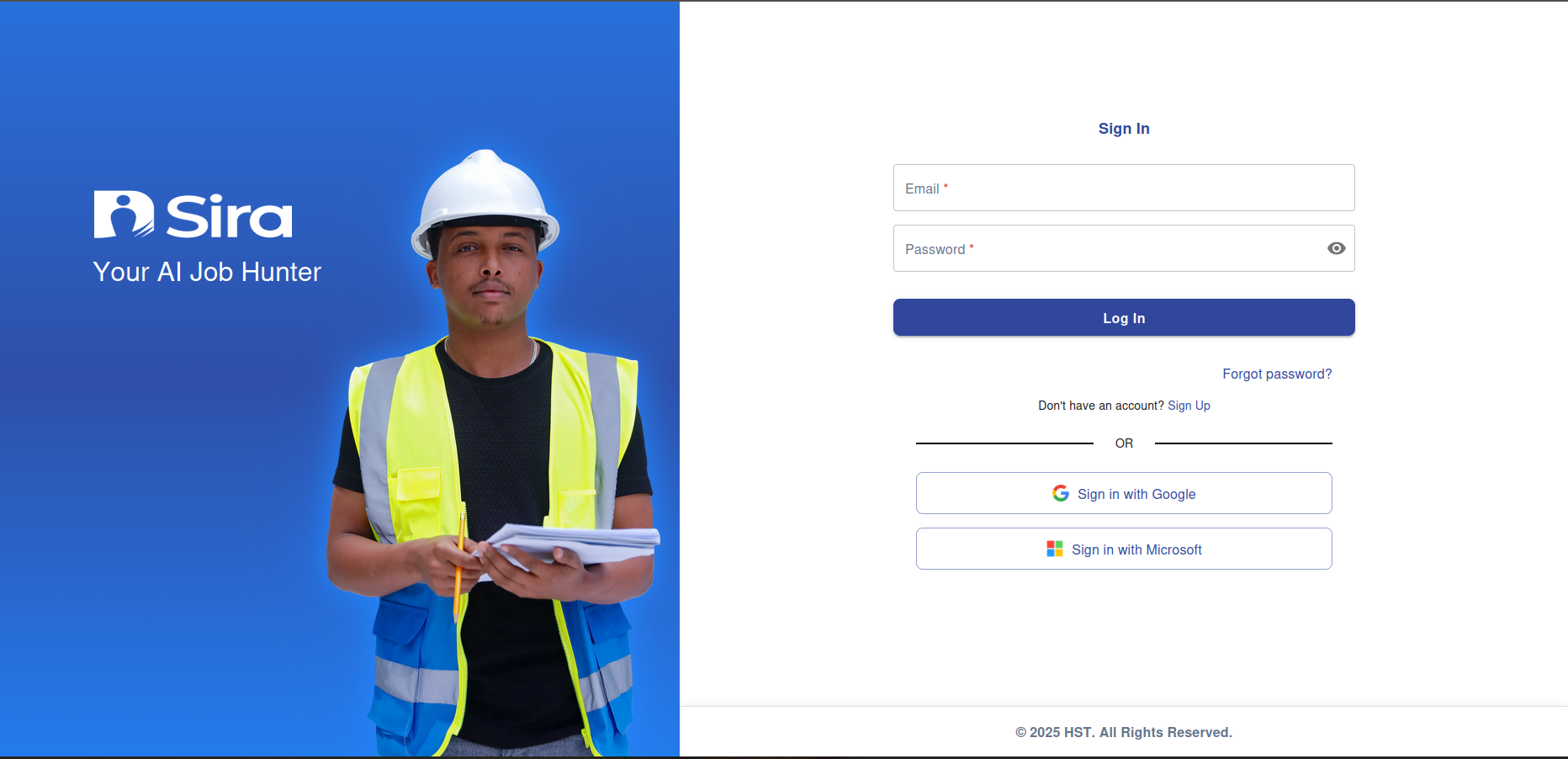
Page Layout
- Logo and Tagline: Located on the left side of the page.
- Sign In Form: Located on the right side of the page.
- Email Field: Enter your registered email address.
- Password Field: Enter your password.
- Log In Button: Click to log in to your account.
- Forgot Password? Link: Click to reset your password.
- Sign Up Link: Click if you don't have an account.
- Third-Party Authentication: Sign in with Google or Microsoft.
Signing In with Email and Password
Steps
-
Enter Email:
- In the Email field, enter the email address associated with your Sira account.
-
Enter Password:
- In the Password field, enter your password.
- You can toggle the visibility of your password by clicking the eye icon.
-
Log In:
- Click the Log In button to access your account.
Forgot Password?
If you have forgotten your password, follow these steps:
- Click the Forgot password? link below the Log In button.
- You will be redirected to a password recovery page.
- Enter your registered email address.
- Follow the instructions sent to your email to reset your password.
Signing Up for a New Account
If you don't have a Sira account, you can create one:
- Click the "Don't have an account? Sign Up" link below the Log In button.
- You will be redirected to the Sign Up page.
- Fill in the required details to create your new account.
Signing In with Third-Party Services
You can also sign in using your Google or Microsoft account:
-
Sign in with Google:
- Click the "Sign in with Google" button.
- You will be redirected to Google's authentication page.
- Enter your Google account credentials and follow the prompts to sign in.
-
Sign in with Microsoft:
- Click the "Sign in with Microsoft" button.
- You will be redirected to Microsoft's authentication page.
- Enter your Microsoft account credentials and follow the prompts to sign in.
Troubleshooting
| Issue | Solution |
|---|---|
| Incorrect email or password | Double-check your email and password for typos. Use the "Forgot password?" link if needed. |
| Can't sign in with Google/Microsoft | Ensure you are using the correct Google/Microsoft account linked to Sira. |
| Page not loading | Refresh the page or check your internet connection. |
| Account locked | Contact Sira support for assistance. |
Contact Support
For further assistance, contact the Sira support team at [support email/phone].